Fix production issues in Cursor using the Sentry MCP server and Seer
Use the Sentry MCP server in Cursor to pull issues from your projects, trigger Seer root cause analysis, and apply fixes directly in your IDE — no copy-pasting stack traces required.
Before you start
Tools required
- Cursor IDE installed (version 1.0+ recommended for native OAuth support)
Accounts & access
- Sentry account with at least one project receiving events
- Seer enabled for your organization
- GitHub integration configured for Seer to access your codebase (recommended)
Knowledge
- Basic familiarity with using AI chat in an IDE
- A Sentry project with unresolved issues you want to fix
1 Add the Sentry MCP server to Cursor
Open Cursor and go to Cursor → Settings → Cursor Settings → MCP. Click to add a new MCP server and enter the Sentry MCP server URL. You can also add it manually by editing your mcp.json file. When you first connect, Cursor will open a browser window prompting you to log in with your Sentry organization and authorize the OAuth connection. Once authenticated, all of the available Sentry MCP tools are ready to use in Cursor chat.
Sentry MCP server setup{
"mcpServers": {
"Sentry": {
"url": "https://mcp.sentry.dev/mcp"
}
}
}
2 Ask Cursor for your top issues
Open the Cursor chat window and ask about the issues in your Sentry projects using natural language. The MCP server supports natural language queries, so you do not need exact project slugs or issue IDs. Behind the scenes, the MCP server will look up your organizations, find matching projects, and return the top unresolved issues.
Learn more about issuesShow me the top issues in my frontend and backend
projects in Sentry.
3 Trigger Seer root cause analysis on the results
Once Cursor returns the list of issues, ask it to fix them using Seer. The MCP server will trigger a Seer root cause analysis for each issue. Seer examines stack traces, tracing data, logs, profiles, and your connected codebase to determine why each issue is happening. This step takes a few minutes to complete, depending on how many issues you send.
Seer issue fix documentationFix these issues with Seer.
4 Review the root cause analysis
As Seer finishes each analysis, Cursor will display the results inline. Expand each issue to see the root cause analysis, including the sequence of events that led to the error and the recommended fix. This is the same information you would see on the Issue Details page in Sentry, but pulled directly into your editor. Cursor will then begin applying the suggested fixes to your codebase based on the analysis.
Root cause analysis details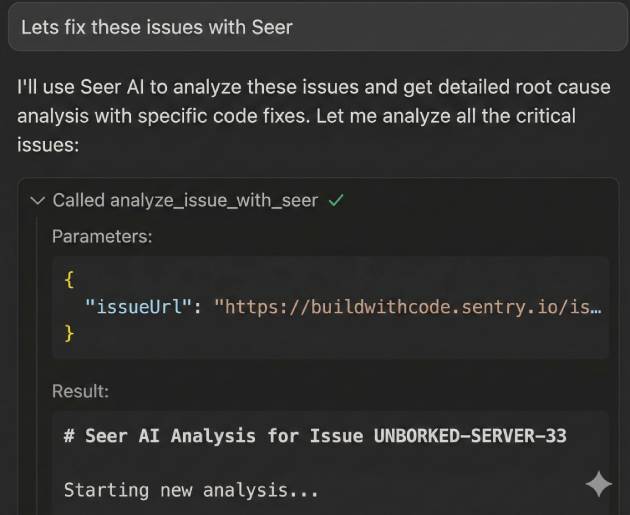
5 Investigate database performance issues
Open a new Cursor chat tab and query for performance problems. The MCP server can search your traces and spans to find slow database queries, connection issues, and other performance bottlenecks. The results include specific query details, latency stats, and the affected endpoints.
Explore tracesShow me all the database performance issues
for my-project in Sentry.
6 Feed performance findings back to Cursor for a fix
Take the performance details the MCP server returned — slow queries, affected tables, latency numbers — and ask Cursor to debug and fix the underlying code. Cursor can use the span and trace data as context to propose optimizations like query rewrites, indexing changes, or connection pooling adjustments.
Take this information and debug why
these database queries are slow.
7 Verify fixes in Sentry
After deploying your changes, confirm the issues are resolved. Check Issues to see if the error has stopped reproducing. For performance fixes, check the Trace Explorer to compare latency before and after your changes.
Learn more about issuesThat's it.
Your issues have fixes.
Sentry surfaced the error, the MCP server gave Cursor the context it needed, and Cursor wrote the fix. Your debugging loop is shorter.
- Connected the Sentry MCP server to Cursor
- Queried Sentry for top issues across multiple projects using natural language
- Triggered Seer root cause analysis directly from your IDE
- Investigated database performance issues through traces and spans
- Applied Seer-recommended fixes directly in your codebase
Pro tips
- 💡 You can reference specific issue IDs in your prompts, like 'Diagnose issue PROJECT-123 and propose a fix.' The MCP server will fetch that exact issue.
- 💡 Connect your GitHub repos to Seer for better root cause analysis. Seer uses your actual codebase, not just stack traces, to find the root cause.
- 💡 Use the MCP server to create new projects, check releases, or look up DSNs — it supports over 16 tools beyond just issue debugging.
- 💡 If you want to test the MCP server without modifying code, try the web-based demo to explore Sentry data through natural language.
Common pitfalls
- ⚠️ Seer root cause analysis takes a few minutes per issue. Queue up multiple issues at once and let it run rather than waiting on each one individually.
- ⚠️ If the MCP server can not find your project, try being more specific with the project name. It searches across all organizations you have access to.
- ⚠️ Seer works best when it has access to your GitHub repos. Without a connected codebase, the analysis is limited to Sentry telemetry only.
- ⚠️ If OAuth authentication fails, check that your Sentry organization permissions are correct and try reauthenticating through Cursor's MCP settings.
Frequently asked questions
What's next?
Fix it, don't observe it.
Get started with the only application monitoring platform that empowers developers to fix application problems without compromising on velocity.