Monitor your AI agent costs and calls in Next.js
Connect Sentry to your Vercel AI SDK app and get instant visibility into token usage, LLM costs, tool calls, and agent traces.
Before you start
SDKs & packages
- A Next.js app (v13+ with App Router recommended)
- Vercel AI SDK installed (
aipackage)
Accounts & access
- Sentry account with a Next.js project created
Knowledge
- Basic familiarity with Next.js API routes or Route Handlers
- Basic understanding of the Vercel AI SDK (
streamText,generateText)
1 Install the Sentry Next.js SDK
Add the Sentry SDK to your project using the wizard, which handles the instrumentation files automatically. Run this in your project root.
Next.js SDK setup guidenpx @sentry/wizard@latest -i nextjs 2 Enable tracing and add the Vercel AI integration
Open sentry.server.config.ts and make sure tracesSampleRate is greater than zero. Then import vercelAIIntegration from @sentry/nextjs and add it to the integrations array.
import * as Sentry from '@sentry/nextjs';
import { vercelAIIntegration } from '@sentry/nextjs';

Sentry.init({
  dsn: process.env.SENTRY_DSN,
  tracesSampleRate: 1.0,
  integrations: [
    vercelAIIntegration(),
  ],
});
3 Enable telemetry on your AI SDK calls
In any Route Handler that uses the Vercel AI SDK, add the experimental_telemetry option to your streamText or generateText call. Set isEnabled: true and provide a functionId — this label appears as the span name in Sentry traces.
You can also set recordInputs and recordOutputs to capture the full prompts and completions. Disable these on routes that handle sensitive user data.
import { streamText } from 'ai';
import { openai } from '@ai-sdk/openai';

export async function POST(req: Request) {
  const { messages } = await req.json();

  const result = await streamText({
    model: openai('gpt-4o'),
    messages,
    experimental_telemetry: {
      isEnabled: true,
      functionId: 'chat-route',
      recordInputs: true,
      recordOutputs: true,
    },
  });

  return result.toDataStreamResponse();
}
4 Explore agent traces in Insights
Trigger a request in your app, then head to Insights → Agents in Sentry. You'll see pre-built widgets for LLM calls, token usage, and tool calls. Click into any trace to see the full agent workflow — the system prompt, model output, and each tool call nested in sequence.
AI Agents Insights documentation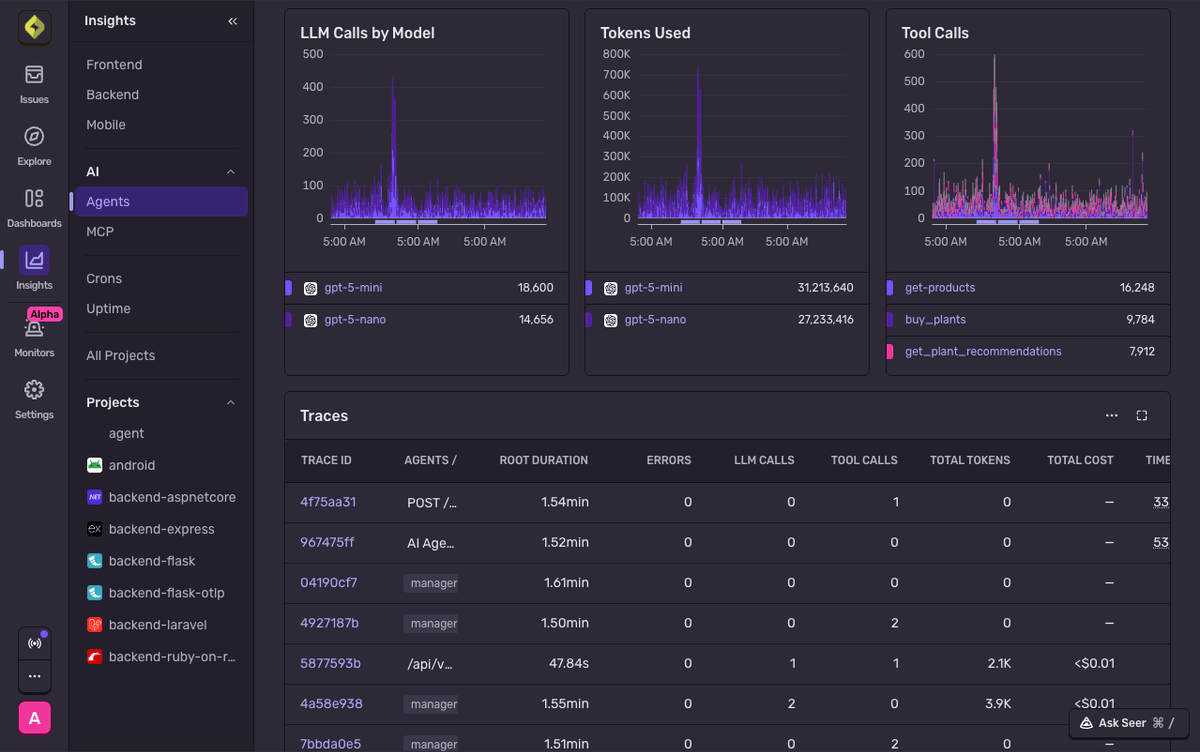
5 Check LLM costs and model breakdown
From the Agents dashboard, click Models to get a breakdown of costs, token usage, and token types (input vs. output vs. cached) by model. This view makes it easy to spot which models are driving the most spend and how effectively cached tokens are being used. You can also build custom dashboards to combine this data with other application metrics like error rates or latency.
AI Agents Insights documentation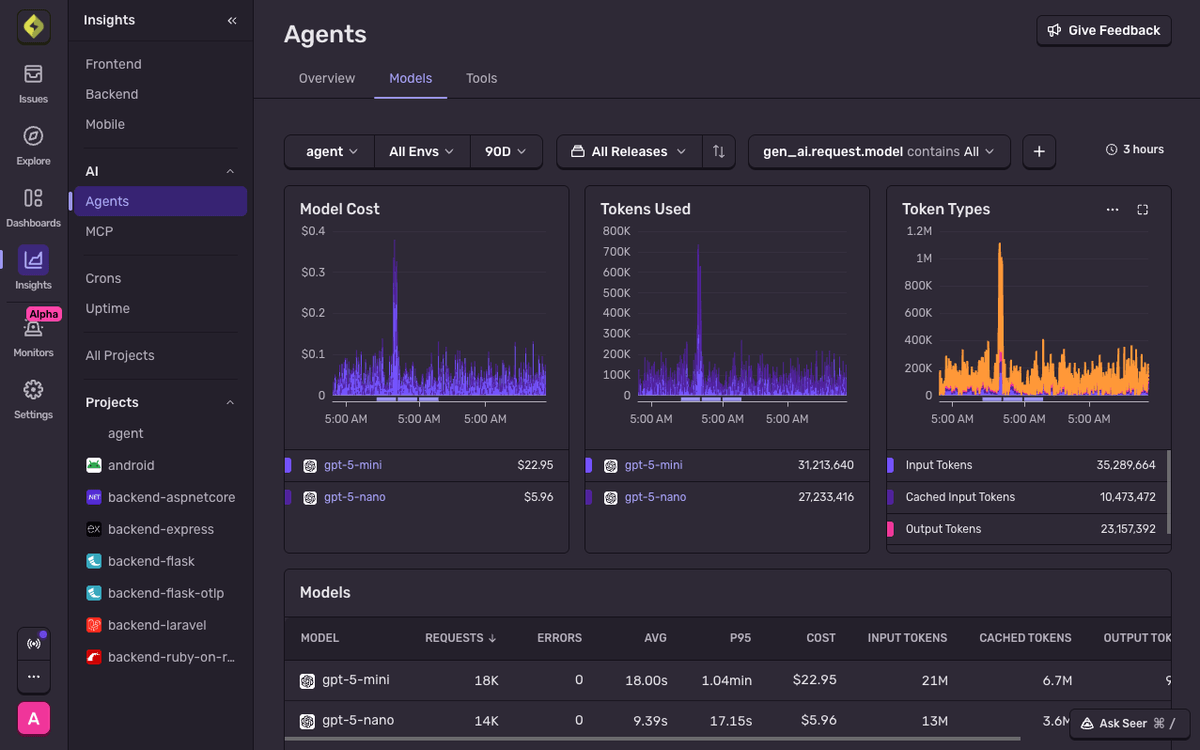
6 Drill into the full trace
From any agent trace, click View Full Trace to open the Trace Explorer. Here you'll see the entire request lifecycle — from the page load or API call all the way down to each LLM request and tool execution. This gives you the full-stack context to understand whether a slow tool call is a database issue, a network problem, or an AI provider timeout.
Trace Explorer documentation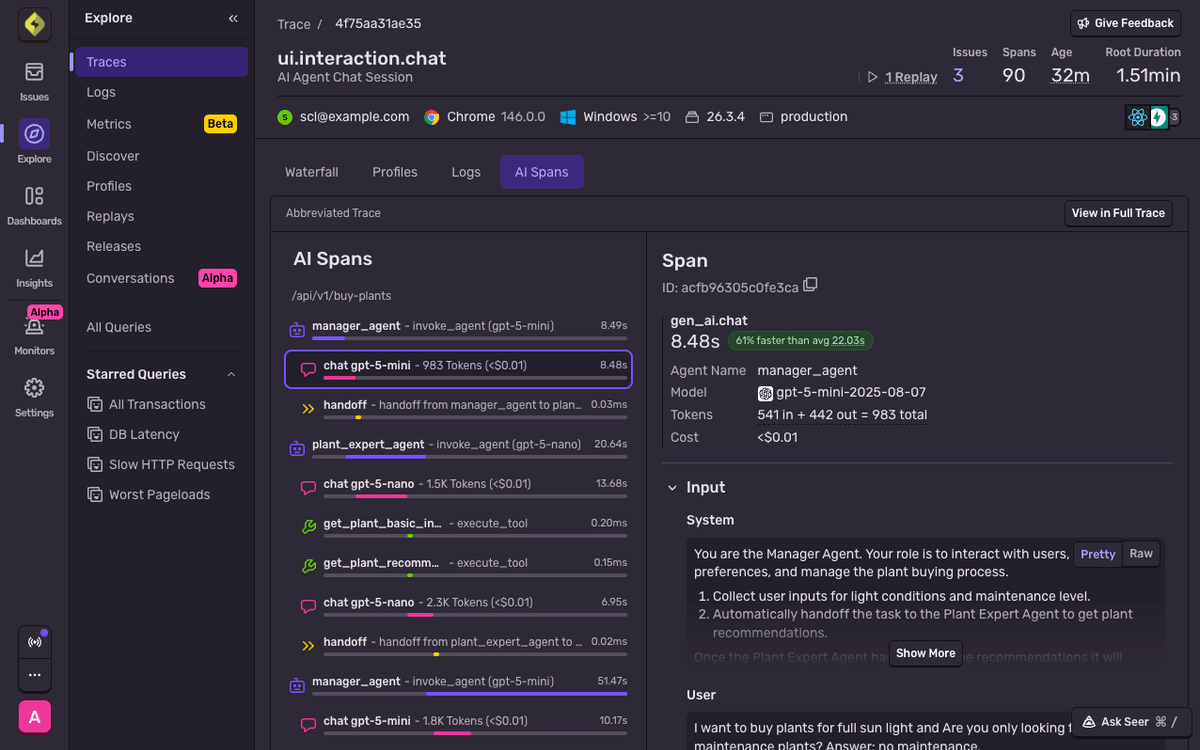
That's it.
You know exactly what your agents cost.
Every token, tool call, and model request shows up in Sentry with full trace context — so you can optimize cost and debug performance without switching tabs.
- Configured Sentry tracing in your Next.js app
- Added the Vercel AI integration for automatic LLM instrumentation
- Enabled telemetry on AI SDK calls to capture prompts and outputs
- Explored agent traces, token usage, and tool calls in Insights → Agents
- Viewed per-model cost and token breakdowns
Pro tips
- 💡 Use a meaningful
functionIdfor eachstreamTextorgenerateTextcall (e.g.'chat-route','summarize-document') — it becomes the span name in Sentry and makes traces much easier to filter. - 💡 Set
tracesSampleRateto a lower value like0.2in production to reduce volume, then raise it temporarily when debugging a specific issue. - 💡 Use
Sentry.setConversationId()to link spans across multi-turn conversations so you can analyze complete conversation flows rather than individual requests. - 💡 Tool calls that hit your database appear as child spans inside the agent trace — if a tool is slow, check whether the database span is the actual bottleneck.
Common pitfalls
- ⚠️ Forgetting to set
tracesSampleRategreater than zero — AI spans are only captured when tracing is active. - ⚠️ Not wrapping tool calls in Sentry spans — if your agent calls external APIs or runs database queries as tools, they won't appear in the trace unless instrumented. Use the Sentry SDK or auto-instrumented libraries so tool performance shows up alongside your LLM spans.
- ⚠️ Miscounting cached tokens:
gen_ai.usage.input_tokensshould be the total including cached tokens, with the cached portion reported separately asinput_tokens.cached. Reporting only the non-cached portion causes Sentry to calculate negative costs. - ⚠️ Leaving
recordInputs: trueon routes that handle sensitive user data — prompts are captured by default, so opt out explicitly where needed.
Frequently asked questions
gen_ai.request operation.experimental_telemetry option is specific to the Vercel AI SDK.tracesSampleRate to control exactly how many traces you send.recordInputs: true and recordOutputs: true in the experimental_telemetry config. For privacy-sensitive routes, set these to false to capture only metadata like token counts and model names.What's next?
Fix it, don't observe it.
Get started with the only application monitoring platform that empowers developers to fix application problems without compromising on velocity.