Monitor your MCP server with Sentry
Wrap your MCP server with a single function call to get full visibility into client activity, transport distribution, tool and resource performance, and errors — including the silent ones MCP hides from you.
Before you start
SDKs & packages
- @sentry/node v9.46.0+ for JavaScript, or sentry-sdk v2.43.0+ for Python
- @modelcontextprotocol/sdk (JavaScript) or mcp (Python)
Accounts & access
- Sentry account with a project for your MCP server
- Access to deploy your MCP server code
Knowledge
- Basic understanding of MCP (Model Context Protocol) concepts: tools, resources, and prompts
- Familiarity with your server framework (Express, Hono, FastAPI, etc.)
1 Initialize Sentry and wrap your MCP server
Import the Sentry SDK and initialize it *before* anything else. Then wrap your McpServer instance with Sentry.wrapMcpServerWithSentry(). This single wrapper automatically instruments all tool calls, resource reads, and prompt retrievals. Set recordInputs and recordOutputs to true if you want to capture tool call arguments and results. These default to true when sendDefaultPii is enabled.
import * as Sentry from "@sentry/node";
import { McpServer } from "@modelcontextprotocol/sdk";

// Sentry init must be above everything else
Sentry.init({
  dsn: "https://examplePublicKey@o0.ingest.sentry.io/0",
  tracesSampleRate: 1.0,
});

// Wrap your MCP server — this is the one line that does it
const server = Sentry.wrapMcpServerWithSentry(
  new McpServer({
    name: "my-mcp-server",
    version: "1.0.0",
  }),
  {
    recordInputs: true,
    recordOutputs: true,
  }
);

// Define your tools, resources, and prompts as usual
// server.tool(...), server.resource(...), etc.
2 (Python alternative) Add the MCP integration
If your MCP server is written in Python, add the MCPIntegration to your sentry_sdk.init() call. This works with both the high-level FastMCP API and the low-level mcp.server.lowlevel.Server API. Set send_default_pii=True to capture tool inputs and outputs.
import sentry_sdk
from sentry_sdk.integrations.mcp import MCPIntegration
from mcp.server.fastmcp import FastMCP

sentry_sdk.init(
    dsn="https://examplePublicKey@o0.ingest.sentry.io/0",
    traces_sample_rate=1.0,
    send_default_pii=True,
    integrations=[MCPIntegration()],
)

mcp = FastMCP("my-mcp-server")

@mcp.tool()
async def calculate_sum(a: int, b: int) -> int:
    """Add two numbers together."""
    return a + b

mcp.run()
3 Deploy and verify data is flowing
Deploy your MCP server and trigger a few tool calls or resource reads from any MCP client (Cursor, Claude Desktop, a custom client, etc.). Then go to your MCP Dashboard in Sentry. You should see incoming requests within a few seconds.
MCP dashboard docs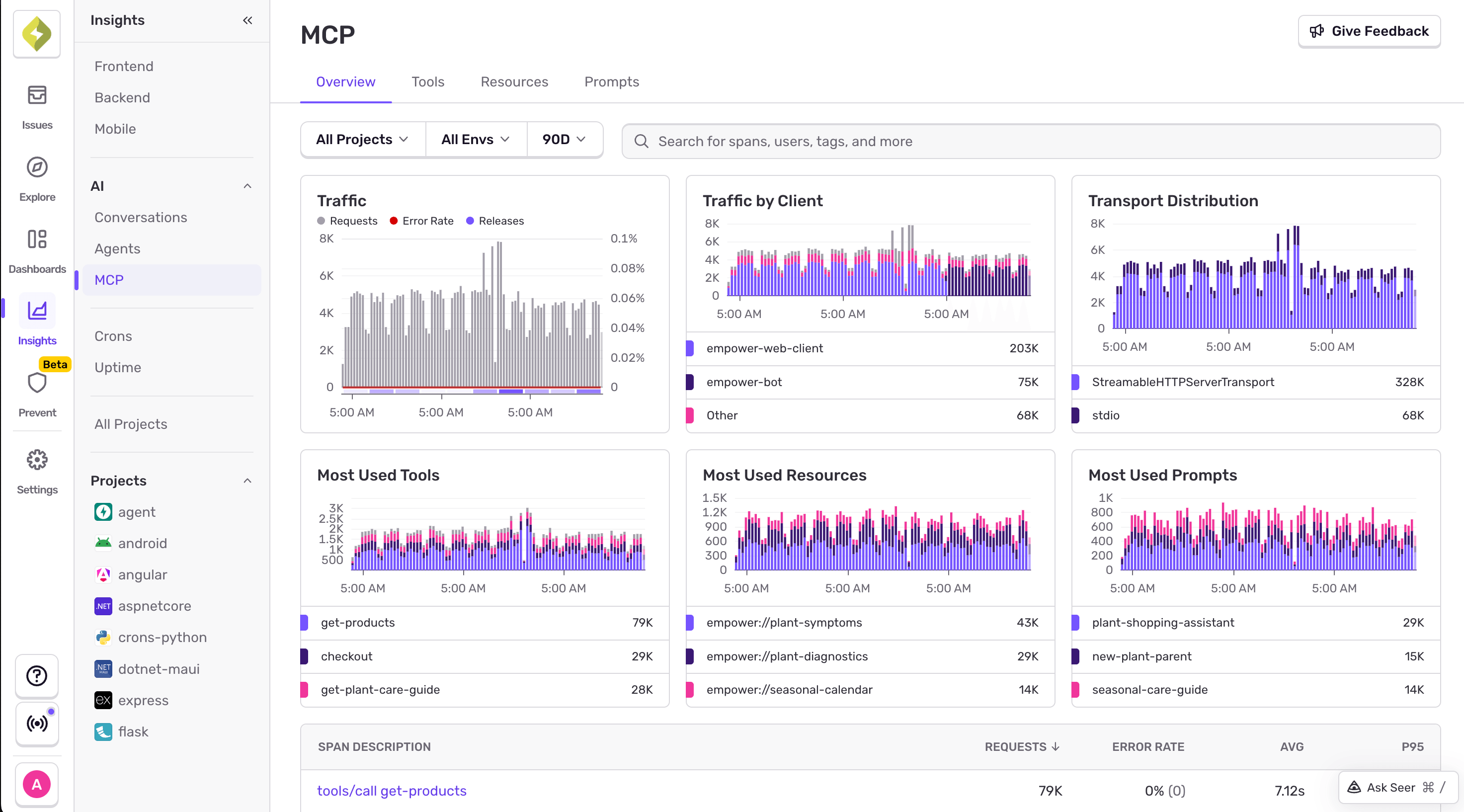
4 Check client and transport distribution
At the top of the MCP Dashboard, two widgets show you who is connecting and how. Traffic by Client breaks down requests by MCP client (for example, cursor-vscode, claude-desktop, or a custom client). Transport Distribution shows which transport protocols are in use — Streamable HTTP, SSE (Server-Sent Events), or custom transports. Use this to understand your user base and decide which clients to optimize for, or whether to build deep-link integrations for popular clients.
5 Identify slow and failing tools
Press the Tools tab on the MCP dashboard. You'll find Most Used Tools, Slowest Tools, and Most Failing Tools widgets, plus a table with per-tool metrics: request count, error rate, average duration, and P95 latency. If a tool is heavily used but slow, this is your signal to optimize it. If a tool has a high error rate, click into it to investigate.
Tools performance metrics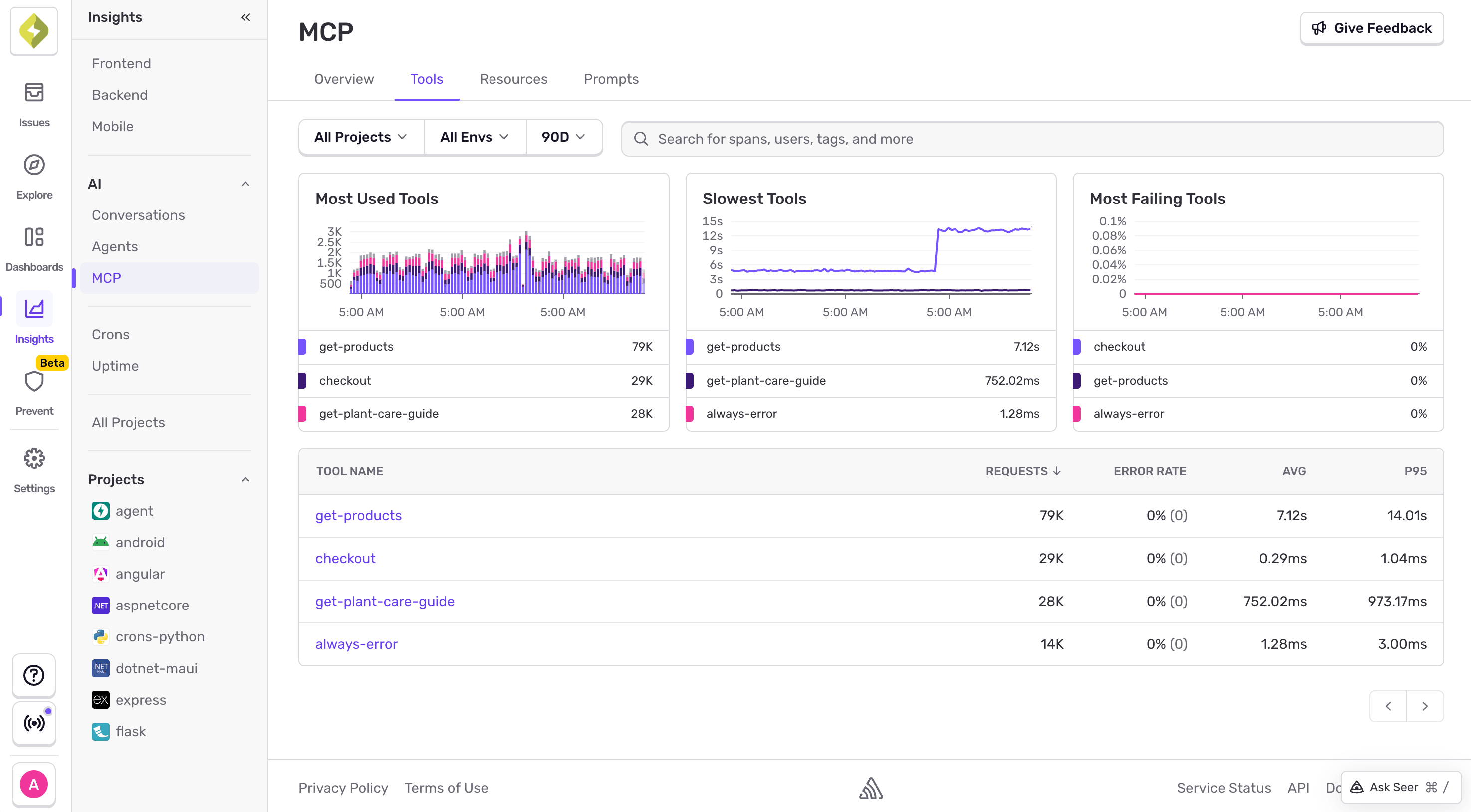
6 Inspect resource and prompt performance
The dashboard has equivalent tables for resources and prompts. Resources shows access patterns by URI, including request count, error rate, and latency. This is especially useful if your resources fetch data from external services — you can identify bottlenecks quickly. Prompts tracks prompt template usage and performance. Each entry shows response times and error rates.
Resource and prompt metrics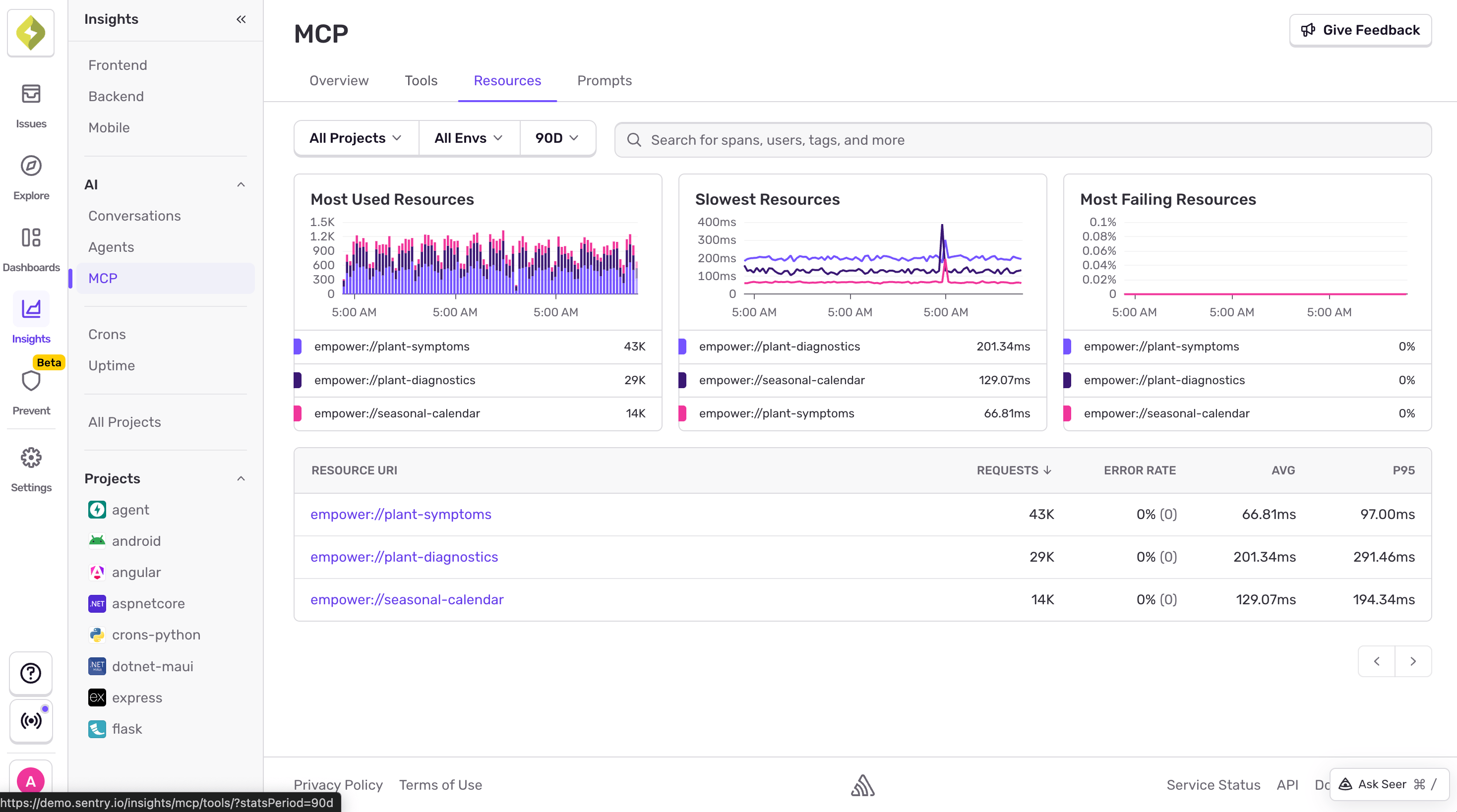
7 Trace a specific tool call
Click into any tool from the dashboard to see its individual traces. Each trace shows the full lifecycle of a JSON-RPC request, including the tool name, execution duration, input arguments, and output results. You also get metadata like the MCP client name, transport type, request ID, and session ID. If your server is stateful, use session IDs to group all requests from the same session.
Trace explorer docs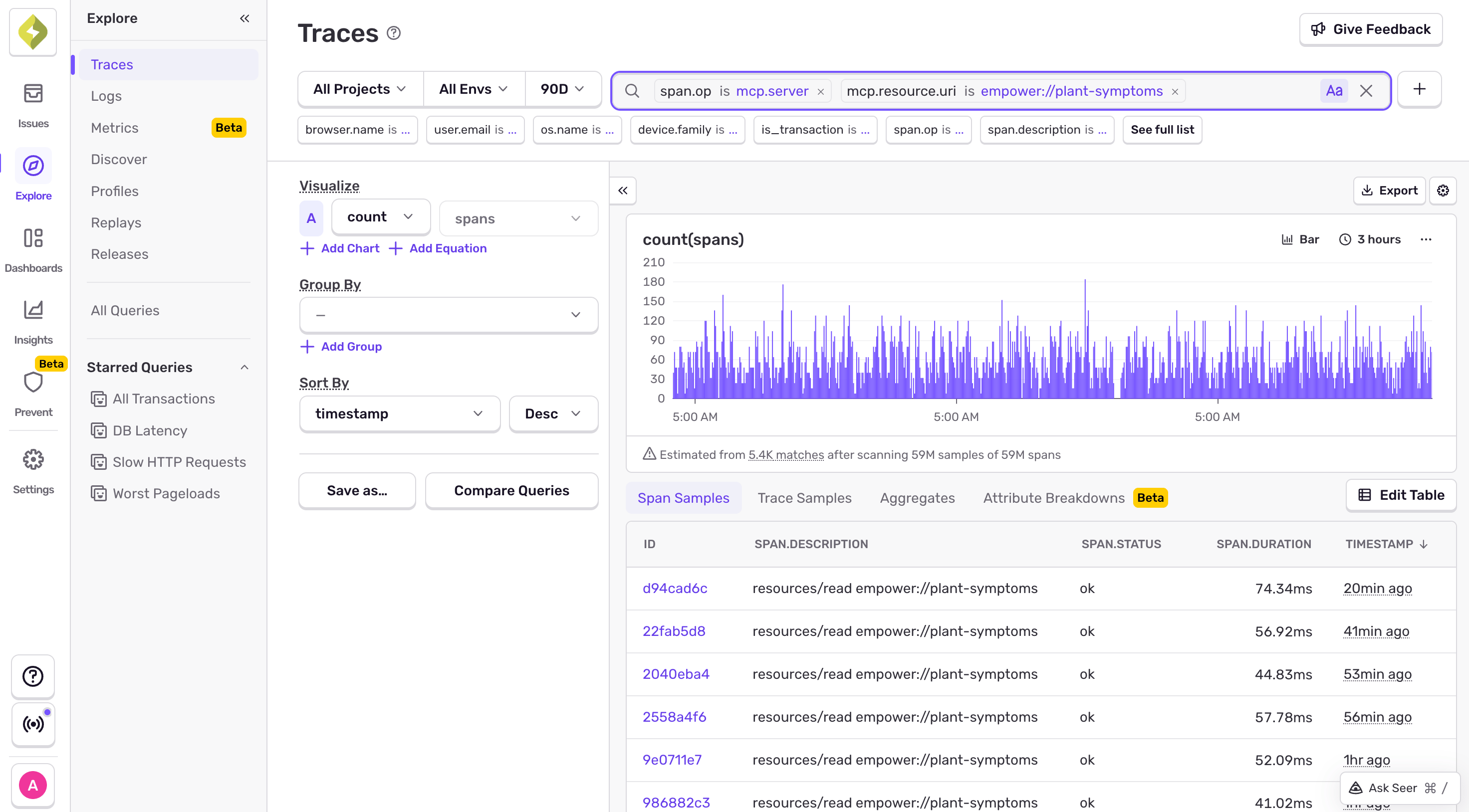
8 Catch errors that MCP silently swallows
The Anthropic MCP SDK handles errors by returning a JSON-RPC response instead of throwing. This means a failing tool or resource will not produce an error in your application — it just silently responds with a generic message. Sentry captures these errors anyway and links them to the specific tool, resource, or prompt that caused them. Check Issues to see errors broken out by tool and resource, with full stack traces and context.
Issues overviewThat's it.
Your MCP server is being monitored.
Errors and slow tool calls will show up in Sentry before your users have to report them.
- Instrumented an MCP server with one line of code
- Identified which clients and transports are connecting to your server
- Found your slowest and most error-prone tools and resources
- Traced individual tool calls with full input and output data
- Caught errors that MCP silently swallows
Pro tips
- 💡 Enable
recordInputsandrecordOutputs(orsend_default_piiin Python) during development to see full tool arguments and results in traces. Consider disabling in production if your tools handle sensitive data. - 💡 Use the session ID attribute to group and filter all requests from a single MCP session — helpful for debugging stateful server issues.
- 💡 Sentry's MCP monitoring is OpenTelemetry-compatible. If you're using a different MCP server library that follows OpenTelemetry semantic conventions for MCP, you'll get the same dashboard data.
- 💡 Check the Transport Distribution widget regularly. If you see unexpected custom transports or unknown clients, it could indicate unauthorized access.
Common pitfalls
- ⚠️ Tool call arguments and results are treated as PII. If
sendDefaultPii(orsend_default_piiin Python) is not enabled, and you haven't explicitly setrecordInputs/recordOutputstotrue, you won't see inputs or outputs in your traces. - ⚠️ Make sure
Sentry.init()runs before you create the MCP server. If Sentry initializes after the server, instrumentation won't attach correctly. - ⚠️ The Node.js SDK requires version 9.46.0 or newer for MCP monitoring. The Python SDK requires version 2.43.0 or newer. Check your installed version if data isn't appearing.
- ⚠️ Don't forget to set
tracesSampleRate(ortraces_sample_rate) to a value greater than 0. Without tracing enabled, MCP spans won't be captured.
Frequently asked questions
McpServer class from @modelcontextprotocol/sdk. For Python, the integration supports both the high-level FastMCP API and the low-level mcp.server.lowlevel.Server API. Sentry is also OpenTelemetry-compatible, so if your MCP server library follows the OpenTelemetry semantic conventions for MCP, spans will show up in the dashboard.sendDefaultPii: true in your Sentry init config, or explicitly pass recordInputs: true and recordOutputs: true to the wrapMcpServerWithSentry options. For Python, set send_default_pii=True.What's next?
Fix it, don't observe it.
Get started with the only application monitoring platform that empowers developers to fix application problems without compromising on velocity.