Monitor your OpenCode sessions with Sentry
Add the opencode-sentry-monitor plugin to get full visibility into tool calls, token usage, and model costs across every OpenCode session.
Before you start
SDKs & packages
- OpenCode installed and configured
- Node.js 18+ installed
Accounts & access
- Sentry account with a Node.js project created
Knowledge
- Basic familiarity with OpenCode configuration files
1 Create a Sentry project
In Sentry, create a new project for your OpenCode monitoring data. Go to Settings → Projects and click Create Project. Select Node.js as the platform, give it a name like opencode, and copy the DSN from the project settings — you'll need it in the next step.
2 Install the plugin
The opencode-sentry-monitor package is an OpenCode plugin that automatically instruments your sessions. Add it to your OpenCode configuration file (~/.config/opencode/opencode.json or the project-level opencode.json).
{
  "plugin": ["opencode-sentry-monitor"]
}
3 Configure your DSN and options
Create a config file at .opencode/sentry-monitor.json (or ~/.config/opencode/sentry-monitor.json for a global setup). Add your DSN and set tracesSampleRate to 1 to capture everything during setup. You can optionally enable recordInputs and recordOutputs to capture tool inputs and outputs in your spans.
{
  "dsn": "https://<your-dsn>@o<org>.ingest.sentry.io/<project-id>",
  "tracesSampleRate": 1,
  "recordInputs": true,
  "recordOutputs": true
}
4 Run OpenCode and generate activity
Start an OpenCode session by running opencode in your terminal and ask it to do a few things — read some files, run a command, write some code. The more tool calls it makes, the richer the data you'll see in Sentry. Every session will be captured as a gen_ai.invoke_agent span, with each tool execution — bash, read, grep, and others — tracked as a gen_ai.execute_tool child span. Token usage and model details are recorded automatically.
5 Explore tool calls and token usage in Sentry
Head to AI Agents Insights in Sentry. You'll see LLM calls broken down by model, total tokens consumed, tool call volume, and per-session traces with cost estimates. Click any trace to drill into every tool call and message in that session.
AI Monitoring documentation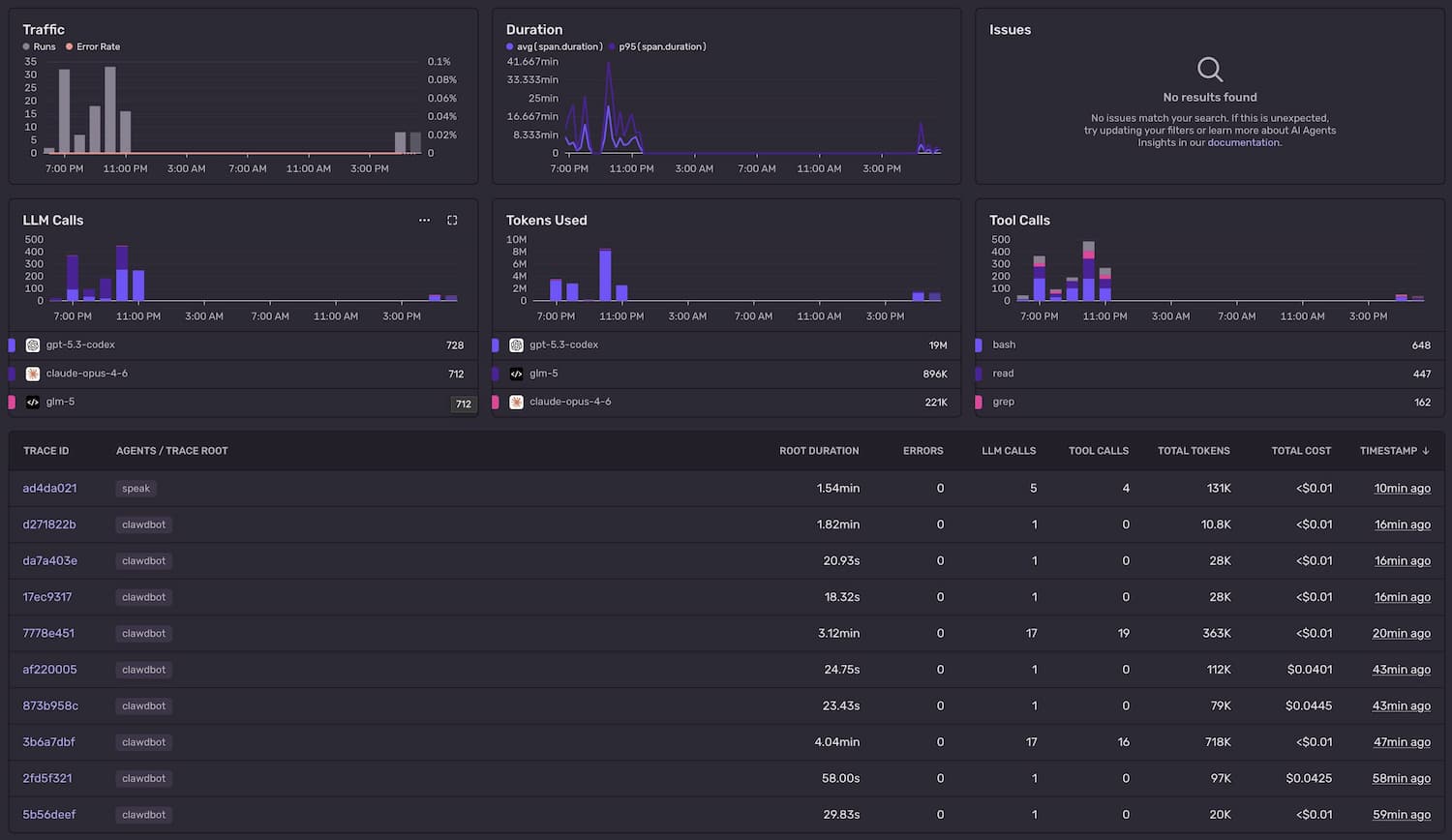
That's it.
Every tool call, tracked.
You get a complete picture of how your AI coding agent uses models and tools — so you can tune it, debug it, and understand exactly what it's doing.
- Installed the opencode-sentry-monitor plugin into OpenCode
- Connected OpenCode sessions to Sentry AI Observability
- Tracked tool calls, LLM calls, token usage, and costs per session
- Explored per-session traces in the Sentry AI Agents dashboard
Pro tips
- 💡 You may want to adjust
tracesSampleRatebased on your traffic volume and how much from your sessions you want to send to Sentry. - 💡 Use
recordInputs: falseandrecordOutputs: falseif your tool calls may contain secrets or sensitive file content. - 💡 Filter the AI Agents dashboard by agent name to isolate OpenCode traces from other AI workloads in the same Sentry project.
- 💡 Environment variables
OPENCODE_SENTRY_DSNandOPENCODE_SENTRY_TRACES_SAMPLE_RATEoverride the config file — useful for CI or shared machines.
Common pitfalls
- ⚠️ Forgetting to restart OpenCode after adding the plugin — it won't pick up the new config until the session is restarted.
- ⚠️ Using a Python or frontend Sentry DSN instead of a Node.js project — the plugin uses
@sentry/nodeand needs a server-side project. - ⚠️ Setting
tracesSampleRate: 0by mistake — this silently disables all tracing, so no data appears in Sentry. - ⚠️ Placing the config file in the wrong location — the plugin searches
.opencode/sentry-monitor.jsonfirst, then~/.config/opencode/sentry-monitor.json.
Frequently asked questions
tracesSampleRate: 1, a heavy day of coding might generate a few hundred traces. Sentry's free tier includes 10,000 spans/month — more than enough to get started.recordInputs and recordOutputs as shown in the config above. With those disabled, only span metadata — tool names, durations, token counts — is captured. No file contents or prompt text is sent.What's next?
Fix it, don't observe it.
Get started with the only application monitoring platform that empowers developers to fix application problems without compromising on velocity.