Replace console.log with structured, trace-connected logging using LogTape and Sentry
Move from noisy string logs to structured, queryable, trace-connected events that help you debug production issues across your entire stack.
Before you start
SDKs and packages
- @sentry/nextjs (or your framework's Sentry SDK) installed
- Logs enabled in your Sentry SDK config
- @logtape/logtape — structured logging library
- @logtape/sentry — Sentry sink for LogTape
Accounts & access
- Sentry account with a JavaScript project
- Access to deploy code to your frontend and/or backend
Knowledge
- Basic JavaScript/TypeScript experience
- Familiarity with your framework's project structure (examples use Next.js)
1 Install LogTape and the Sentry sink
Add LogTape and the LogTape Sentry sink package to your project. LogTape is a lightweight, zero-dependency logging library that works across Node.js, Deno, Bun, and browsers.
LogTape installation docs# npm
npm add @logtape/logtape @logtape/sentry
# pnpm
pnpm add @logtape/logtape @logtape/sentry
# yarn
yarn add @logtape/logtape @logtape/sentry
2 Configure LogTape on the client side
LogTape routes logs through sinks — named destinations that receive log records. In this step, you configure two: console for local development output and sentry to forward logs to your Sentry project. Loggers are grouped using categories — arrays like ["my-app"] or nested like ["my-app", "checkout"] — that form a namespace you can use to scope queries in Sentry's Log Explorer. Always initialize Sentry before calling configure() — the Sentry sink needs an active Sentry client to work.
import * as Sentry from "@sentry/nextjs";
import { configure, getConsoleSink } from "@logtape/logtape";
import { getSentrySink } from "@logtape/sentry";

// 1. Initialize Sentry first
Sentry.init({
  dsn: process.env.NEXT_PUBLIC_SENTRY_DSN,
  tracesSampleRate: 0.1,
  sendDefaultPii: true,
  enableLogs: true,
});

// 2. Configure LogTape with console + Sentry sinks
await configure({
  sinks: {
    console: getConsoleSink(),
    sentry: getSentrySink(),
  },
  loggers: [
    {
      category: "my-app",
      lowestLevel: "debug",
      sinks: ["console", "sentry"],
    },
  ],
});
3 Configure LogTape on the server side with implicit context
Contexts are key-value pairs attached to a logger that get included with every log it emits — without repeating them in each call. LogTape supports two models: implicit context on the server via Node.js AsyncLocalStorage (data propagates automatically through the async call chain), and explicit context on the client via logger.with() (data is attached to a derived logger you pass around). To enable implicit context on the backend, pass contextLocalStorage: new AsyncLocalStorage() to configure(). You can then wrap handler logic with withContext() to attach fields like userId or requestId and have every downstream log in that request automatically inherit them.
import * as Sentry from "@sentry/nextjs";
import { configure, getConsoleSink } from "@logtape/logtape";
import { getSentrySink } from "@logtape/sentry";
import { AsyncLocalStorage } from "node:async_hooks";

Sentry.init({
  dsn: process.env.SENTRY_DSN,
  tracesSampleRate: 0.1,
  sendDefaultPii: true,
  enableLogs: true,
});

await configure({
  sinks: {
    console: getConsoleSink(),
    sentry: getSentrySink(),
  },
  loggers: [
    {
      category: "my-app",
      lowestLevel: "debug",
      sinks: ["console", "sentry"],
    },
  ],
  contextLocalStorage: new AsyncLocalStorage(),
});
4 Use filters to control what gets sent where
In production, you may want to filter out certain log levels, like debug, to reduce noise. Use LogTape's withFilter() to wrap a sink with a minimum level — keeping verbose debug output in the console during development while only forwarding info and above to Sentry.
import { configure, getConsoleSink, withFilter } from "@logtape/logtape";
import { getSentrySink } from "@logtape/sentry";

const isDev = process.env.NODE_ENV === "development";

await configure({
  sinks: {
    // Console: show debug in dev, info in prod
    console: withFilter(getConsoleSink(), isDev ? "debug" : "info"),
    // Sentry: always info and above
    sentry: withFilter(getSentrySink(), "info"),
  },
  loggers: [
    {
      category: "my-app",
      lowestLevel: "debug",
      sinks: ["console", "sentry"],
    },
  ],
});
5 Log structured objects instead of strings
The core change from console.log to production-ready logging is switching from strings to structured objects. Instead of logging a message like "User checked out", log an object packed with useful data — user IDs, cart totals, feature flags, coupon codes. This makes your logs queryable and useful for debugging. When you combine structured logs with context (set up via withContext on the server, or the React provider shown in the next steps), shared fields like userId appear automatically on every log — you only need to add what is unique to each event.
import { getLogger } from "@logtape/logtape";

// Use nested categories to scope logs
const logger = getLogger(["my-app", "checkout"]);

// Instead of: console.log("User checked out")
// Do this:
logger.info("Checkout completed", {
  orderId: "ord_5521",
  userId: "user_987",
  cartTotal: 125.50,
  discountCode: "SAVE20",
  itemCount: 3,
  paymentMethod: "credit_card",
});
6 Create a React logger context provider
Browsers do not have AsyncLocalStorage, so implicit context is not available on the frontend. Instead, create a React context provider in lib/logger-context.tsx that wraps your app and automatically attaches session data to every log. The provider exposes two hooks: useLogger() returns a context-enriched logger, and useChildLogger() returns a scoped child logger for a specific component or feature area — so components inherit user context without any manual wiring.
"use client";
import { createContext, useContext, useMemo } from "react";
import { getLogger, type Logger } from "@logtape/logtape";
import { useSession } from "@/lib/auth-client"; // replace with your auth hook

interface LoggerContextValue { logger: Logger; }
const LoggerContext = createContext<LoggerContextValue | null>(null);

export function LoggerProvider({ children }: { children: React.ReactNode }) {
  const { data: session } = useSession();
  const baseLogger = getLogger(["my-app", "app"]);

  const logger = useMemo(() => {
    if (session?.user) return baseLogger.with({ user: session.user });
    return baseLogger.with({ user: { id: "anonymous" } });
  }, [session?.user, baseLogger]);

  return (
    <LoggerContext.Provider value={{ logger }}>
      {children}
    </LoggerContext.Provider>
  );
}

export function useLogger(): Logger {
  const context = useContext(LoggerContext);
  if (!context) return getLogger(["my-app", "app"]);
  return context.logger;
}

export function useChildLogger(category: string): Logger {
  const parentLogger = useLogger();
  return useMemo(() => parentLogger.getChild(category), [parentLogger, category]);
}
7 Wrap your layout and use the logger in components
Wrap your root layout with LoggerProvider so every client component has access to a context-enriched logger. Then in any client component, call useLogger() to get a logger that already carries the session user data set up in the provider — no need to pass context manually or repeat userId in every log call.
// app/layout.tsx
import { LoggerProvider } from "@/lib/logger-context";

export default function RootLayout({ children }: { children: React.ReactNode }) {
  return (
    <html>
      <body>
        <LoggerProvider>{children}</LoggerProvider>
      </body>
    </html>
  );
}

// Any client component
"use client";
import { useLogger } from "@/lib/logger-context";

export function PostItem({ post }: { post: Post }) {
  const logger = useLogger();

  const handleDelete = async () => {
    try {
      await deletePost(post.id);
      logger.info("Post deleted", { postId: post.id });
    } catch (err) {
      logger.error("Delete failed", { postId: post.id, error: err });
    }
  };

  // ...
}
8 View trace-connected logs in Sentry
When an error occurs, open the issue in Issues and scroll to the associated trace. Because Sentry connects logs to traces, every log emitted during that request is visible alongside the error, spans, and Session Replay. You can see the user ID, cart contents, coupon codes, and anything else you included as structured data.
Sentry Logs documentation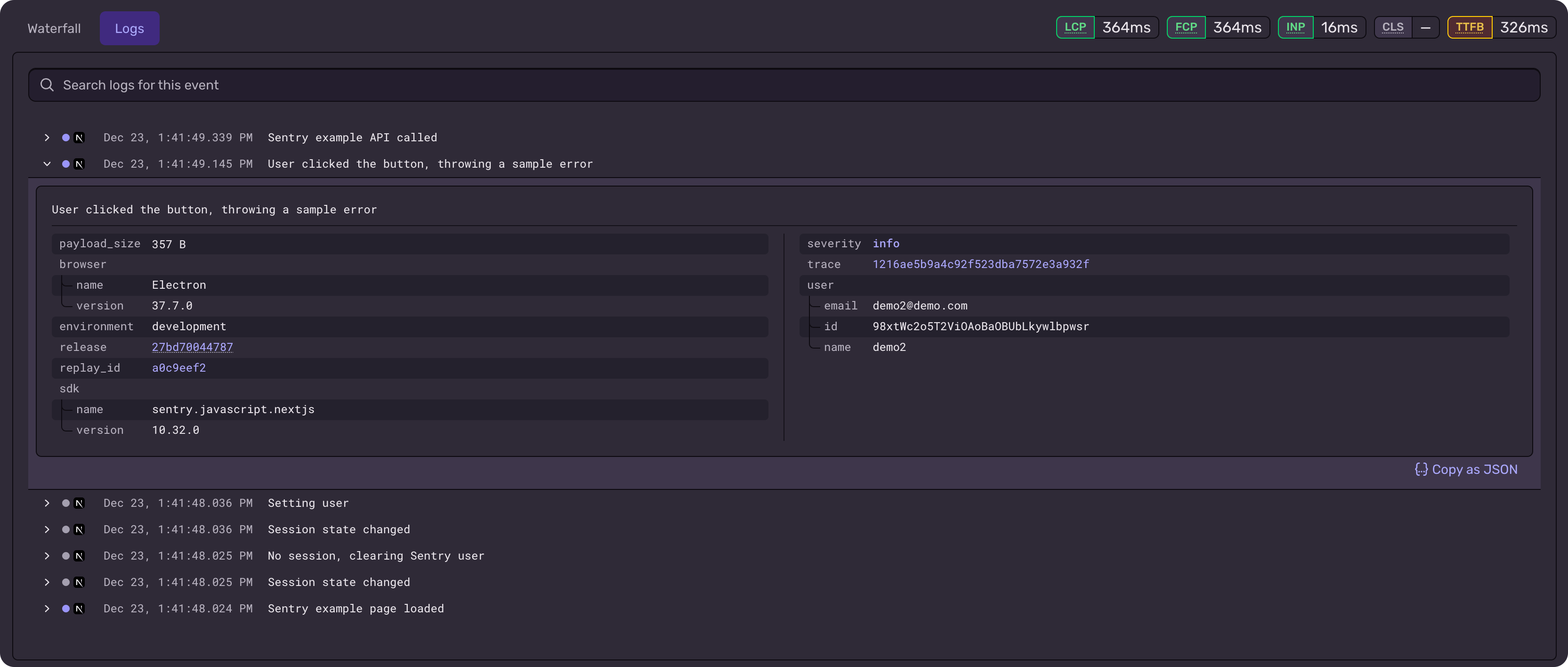
9 Query and filter logs in the Log Explorer
Go to Explore > Logs to search across all of your structured logs. You can filter by any attribute you included — category, severity, user ID, order ID, coupon code, or any custom field. Use LogTape categories to scope queries (e.g., category:my-app.checkout for checkout logs only, or category:my-app for everything).
# Show checkout events where cart total exceeded $100
category:my-app.checkout cartTotal:>100

# Show failed checkouts using a specific coupon code
category:my-app.checkout severity:error discountCode:SAVE20

# Show all logs for a specific user
userId:user_987
10 Create alerts and dashboards from log queries
Once you have queries that surface important patterns, turn them into alerts. For example, create an alert when a specific payment method starts failing frequently, or when error-level logs from the checkout category spike. You can also build dashboards to monitor trends over time. Configure alerts to notify your team on Slack so you can investigate before things get worse.
Sentry Alerts documentation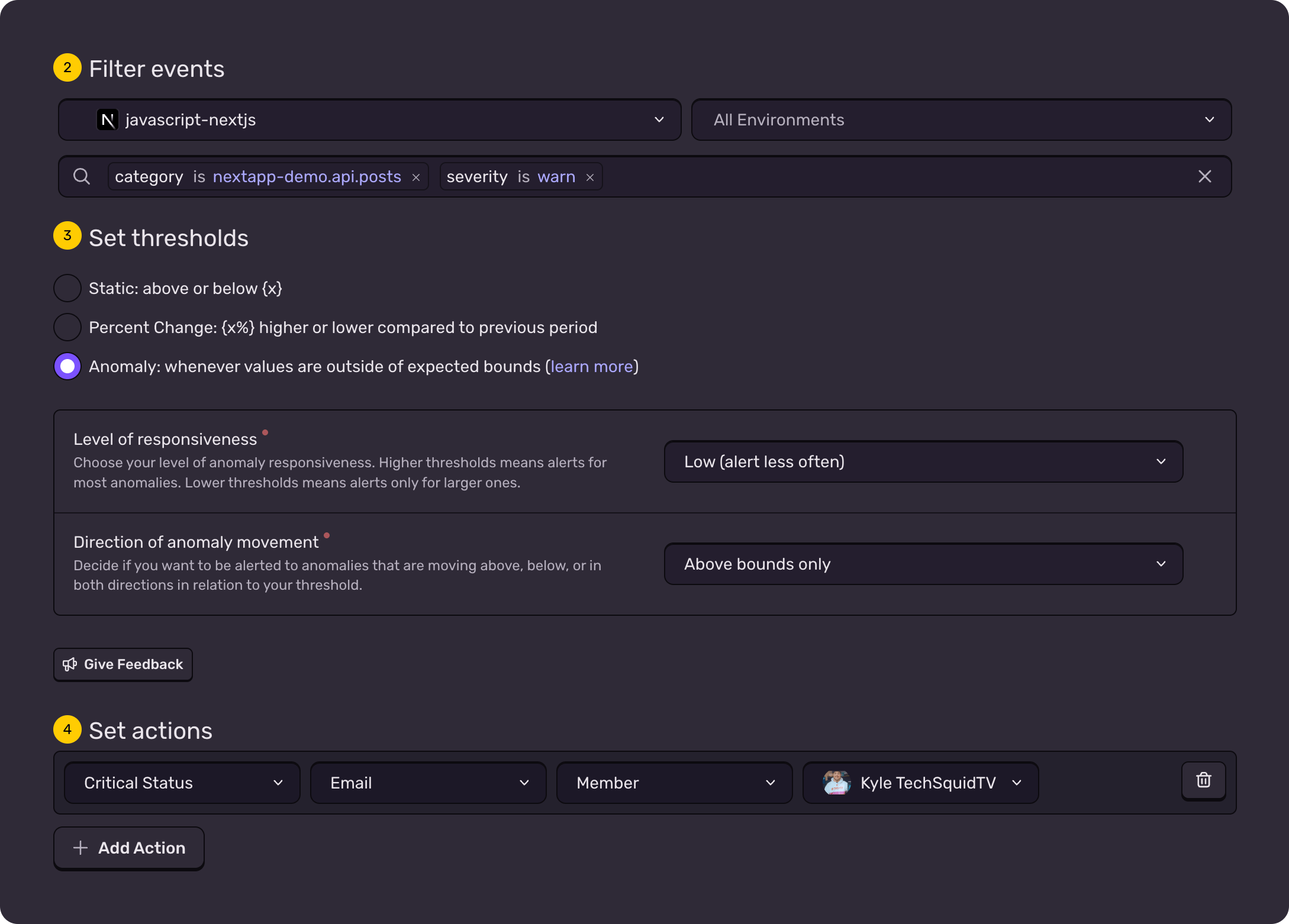
That's it.
Your logs are structured.
Every log carries structured attributes you can filter and search in the Logs Explorer. When something breaks, the context to understand why is already there.
- Replaced console.log with structured logging using LogTape
- Configured LogTape sinks to send logs to the console and Sentry
- Built up context throughout a user flow with high-cardinality log events
- Queried and filtered structured logs in Sentry's Log Explorer
- Created alerts and dashboards from log queries
Pro tips
- 💡 Log at milestones, not every line. Emit fewer logs packed with rich context rather than many thin logs that are hard to correlate.
- 💡 Use nested LogTape categories like
['my-app', 'api', 'checkout']to organize logs by domain. You can then query at any level of the hierarchy. - 💡 On the backend, use
withContextto attach arequestId(e.g.,randomUUID()) to every log in a request. This makes it easy to find all logs for a single request. - 💡 Include high-cardinality data like user IDs, order IDs, and feature flags in your structured logs. Modern tools like Sentry handle high-cardinality data well.
Common pitfalls
- ⚠️ Don't log sensitive data like passwords, tokens, or personally identifiable information (PII). Use Sentry's data scrubbing or redact before logging.
- ⚠️ Always initialize Sentry before configuring LogTape. The Sentry sink needs an active Sentry client to work.
- ⚠️ Avoid setting your Sentry sink to
debuglevel in production — it creates noise and increases costs. Useinfoor above for Sentry and keepdebugfor the console in development. - ⚠️ Don't treat structured logging as a replacement for error monitoring. Use
logger.errorfor expected error states, but let Sentry's error monitoring catch unhandled exceptions automatically.
Frequently asked questions
Sentry.logger API directly without LogTape. LogTape adds features like hierarchical categories, implicit context propagation via AsyncLocalStorage, and the ability to send logs to multiple destinations (console, Sentry, files) from a single logger. If you need those features, LogTape is a good fit. If you just need basic structured logging sent to Sentry, the built-in API works fine.['my-app', 'api', 'checkout'] vs ['my-app', 'api', 'auth']. You can query by category in Sentry's Log Explorer to scope your search.What's next?
Fix it, don't observe it.
Get started with the only application monitoring platform that empowers developers to fix application problems without compromising on velocity.